Channels and calculated parameters#
Course step 6 of 9 · about 15 minutes
Two skills make you fast in Viewer: finding the right signal in a large session, and creating the signals the logger did not record.
Finding parameters#
Press P to open the Parameter Browser. A parameter is identified by a name and the application group it belongs to, written name:application, for example vCar:Chassis.
| Do this | To |
|---|---|
| Choose a group on the left, or All Groups | Narrow the list to a subsystem, or search everything |
| Type in the search box | Search by name, description or group. Name matches are listed first |
Use * in the search text |
Match any characters |
End the search with - or + |
Sort A to Z or Z to A |
| Use the Slow Row, Virtuals and Functions toggles | Show or hide those kinds of parameter |
| Right-click a column header | Choose which columns to show, including Units, Display Min and Display Max |
Press Enter |
Add the selected parameters to the active display |
Application groups are defined by the logging system. You cannot change them in Viewer. If you want different names, use aliasing.
Renaming parameters with aliasing#
Aliasing lets you give parameters your own names, either by replacing a name or by picking the first available source from several, in priority order. It is configured in an aliasing.config file, and Viewer must be restarted for changes to apply. See Parameter aliasing.
Properties: colour, scale, format and units#
Double-click a parameter on a display to open its Parameter Properties. Changes can be Local to one display or Global. A * in the Parameter Browser flags a parameter whose properties differ from the session default. See How Viewer is organised.
Creating calculated parameters#
When you need a channel that was not recorded, there is a ladder of options. Start at the lowest rung that does the job.
| If you need… | Use | Where it runs |
|---|---|---|
| Simple maths on existing parameters | Functions in FDL (Function Definition Language) | In Viewer. |
| Logic you already have in C# or MATLAB | C# or MATLAB functions | In Viewer. Reused without rewriting. |
| A Simulink model run against telemetry | vTAG Server | A separate application. Results appear as native parameters. |
| One agreed set of calculated channels for everyone, computed once | Virtual Parameter Service | A service alongside Open Streaming. |
Your first function#
- Open the Function Editor from the Browser Toolbar or View > Function Editor.
- Click New. Set a name, units and display min/max.
- Use the Function Parameter Browser to insert the parameters, constants or other functions you need as inputs.
- Write the calculation in the Function Definition panel.
- Press
F6to build and check for errors. - Save. The function is now available in the Parameter Browser like any other parameter.
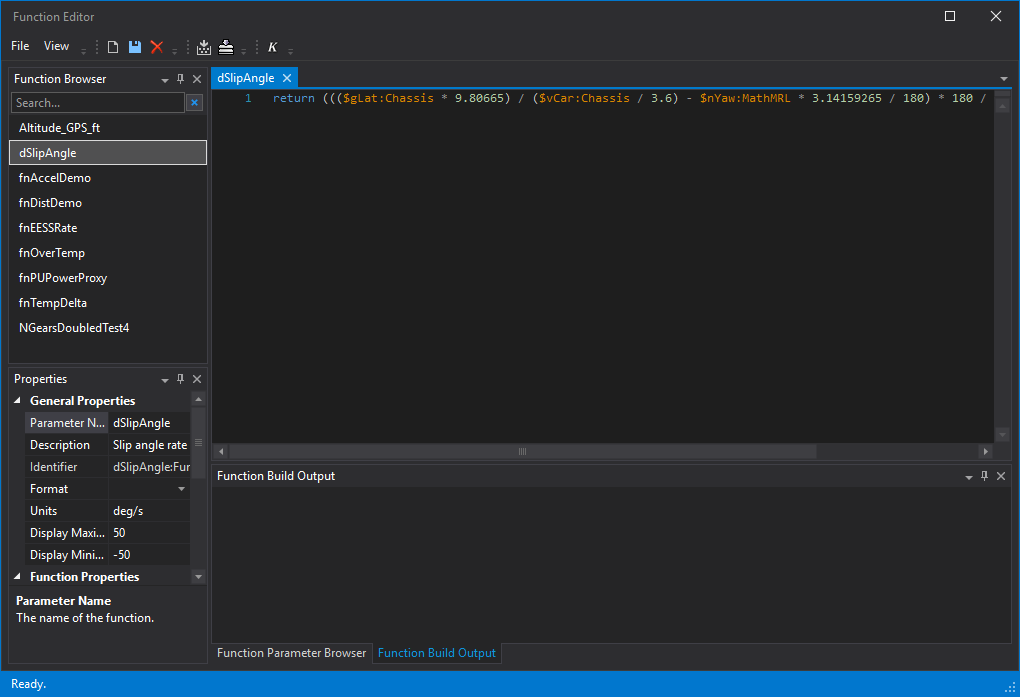
The Function Browser (top left) lists the functions you already have. Double-click one to open it. Its definition opens in a tab, its name, units and display range are in Properties (bottom left), and errors from F6 appear in Function Build Output.
Use the full identifier if short names do not resolve
If a short name does not resolve, use the full name:application identifier, such as vCar:Chassis, unless Resolve without App Name is enabled in Tools > Options > General > Data.
Functions have a mode that decides when and where they calculate, for example instantaneous (at every sample point of every input, results not stored) or coverage cursor based (from the start of the session to the coverage cursor, results stored). Choose it in the Function properties. See Using the Function Editor and Processors for ready-made routines.
Functions are stored with the data layer (SQL Race), so they persist and can be reused. See Functions.
Choosing between the options#
The Choosing components page has a "pick this when" list for each option, including when to move calculations out of Viewer.
Next#
Getting your data in covers where sessions come from, and how to get your own data into Viewer.